

The first thing you need to do when you audit your SaaS website is to perform a quick overview of the health of your website; just to check that nothing really bad is going on. In SEO terms, you want to check your website’s:
- Indexability: whether search engines can read and present your site to your target audience
- Crucial website status codes: essentially, any fatal errors that stop your site or pages from being displayed to visitors.
- Responsiveness: Does your site present well across multiple devices?
- Website speed: This is pretty self explanatory
The tools you’ll need to perform all of the above include:
| Issue | Tool | Available At |
| Indexability | Google Search Console | https://search.google.com/ |
| 4xx and 5xx | Screaming Frog | https://www.screamingfrog.co.uk/seo-spider/ |
| Responsiveness | Manual check | |
| Website Speed Test | Page Speed Insights | https://pagespeed.web.dev/ |
Performing and reporting on the above could take some time if errors present themselves. How long? Well, how long’s a piece of string? Though, performing an initial website health check shouldn’t take more than 15 minutes if everything checks out.
Not sure how your site is performing in search?
Contact us and we can talk about auditing your SaaS website.
Now, let’s get into how to do it.
How to perform an initial website health check
Step 1: Indexability
If you’re not an SEO pro, then we recommend that you check the indexability of your site on a page-by-page basis.
Usually, the first step is to check your homepage. If it’s not being indexed, then chances are that the remaining pages on your website are invisible to search engines as well.
First of all, there are multiple ways to check whether or not your website can be indexed and which pages can be indexed. Those methods include:
- Typing “site:yourdomain.com” into your browser
- Using Google Search Console
- Checking your robots.txt file (this is more recommended for advanced SEO practitioners).
- Checking your sitemap
Below, we’ll go through each method.
Site:yoururl.com
This step tells you whether a particular page is being indexed or not..
It’s a good first step, as if your page is being indexed, then you don’t need to worry about performing further steps.
Here’s how to check:
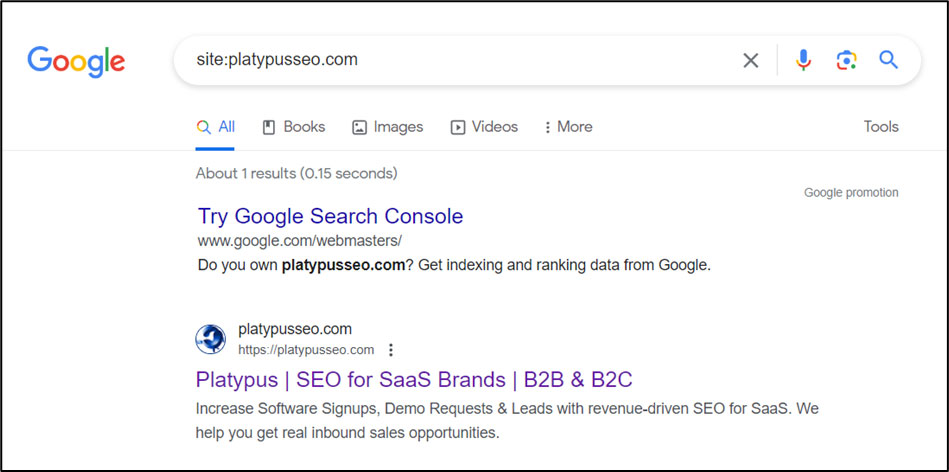
- Head to Google and type in “site:yoururl.com” e.g. site:platypusseo.com
- Take a look at the result Google returns
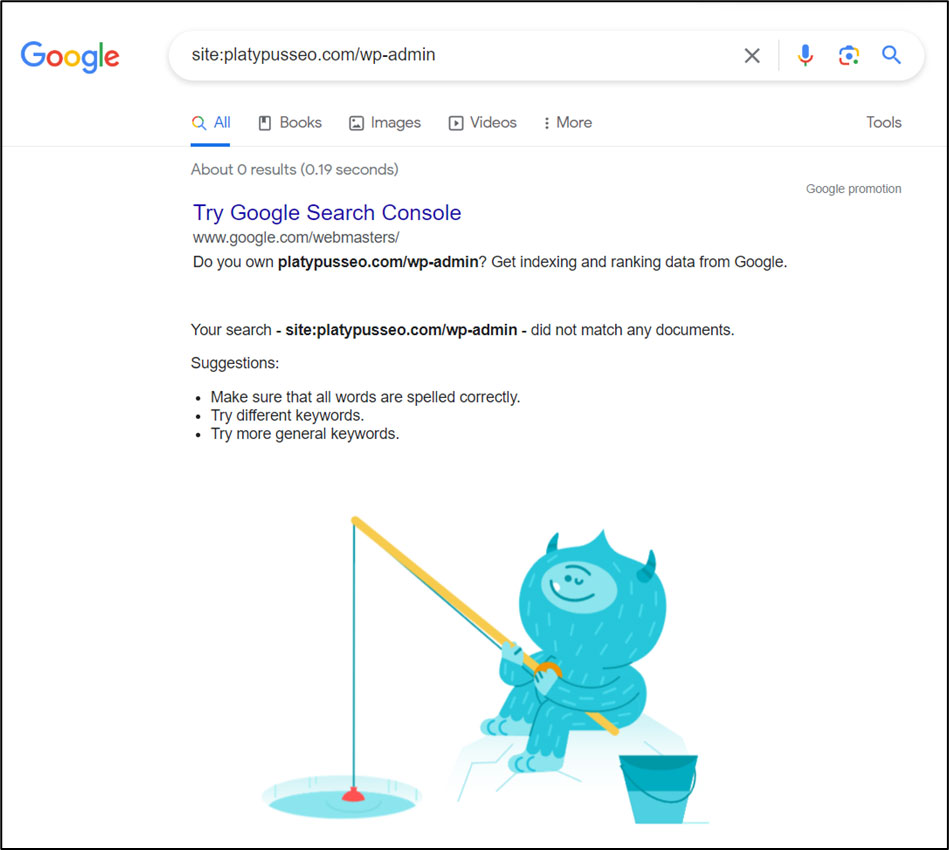
Pro tip: If a page is not being indexed and you don’t want it to be then this is a good thing. For example, take a look at the second screenshot below.
Google Search Console (GSC)
To check the indexability of your entire website or certain pages, you can do a couple of things. Of the two methods we’ve suggested, the first is far simpler for those who aren’t SEO specialists themselves.
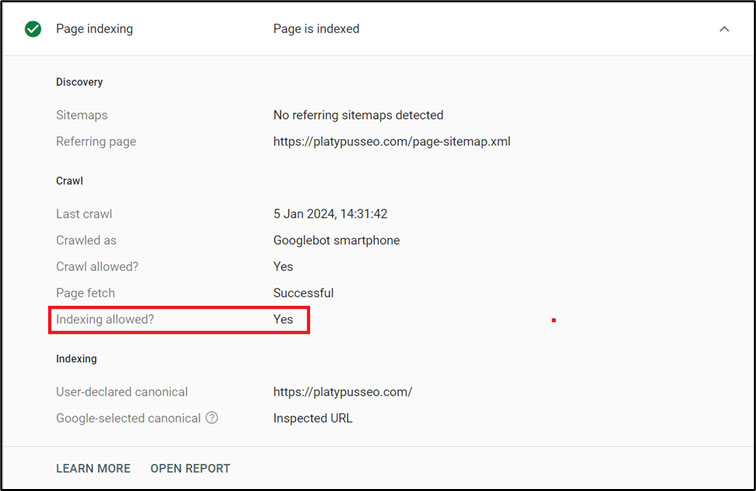
If you’re looking to check out pages individually, then the best method is to use GSC’s URL Inspect Tool (pictured below).
Simply enter the URL you’re interested in checking. From there, GSC will generate a report.
Expand the section called “Page Indexing” and see whether there is a Yes or No under “Indexing allowed?”

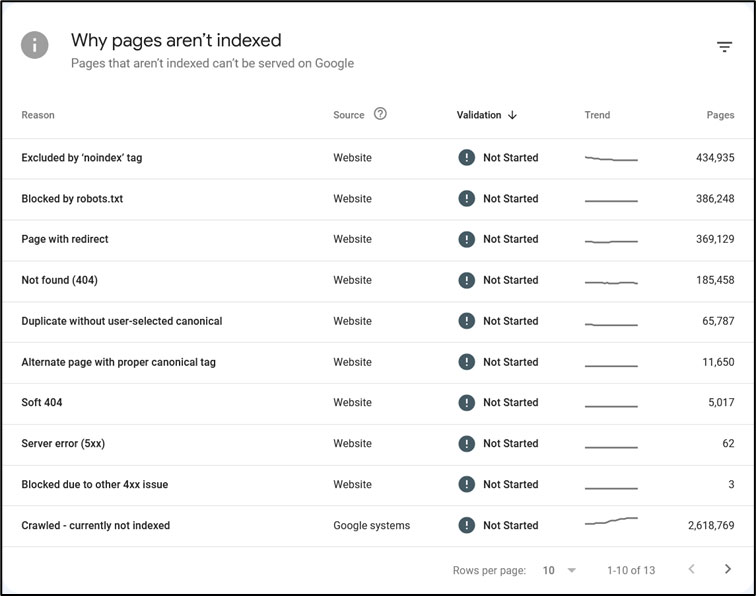
If you’re looking for an overview of your entire website, then check out the indexability report, located on the homepage of your site’s GSC profile.
Click “Full Report”. You will be taken to a new page. From there, you will see a complete overview of all URLs which are indexed and those that are not.
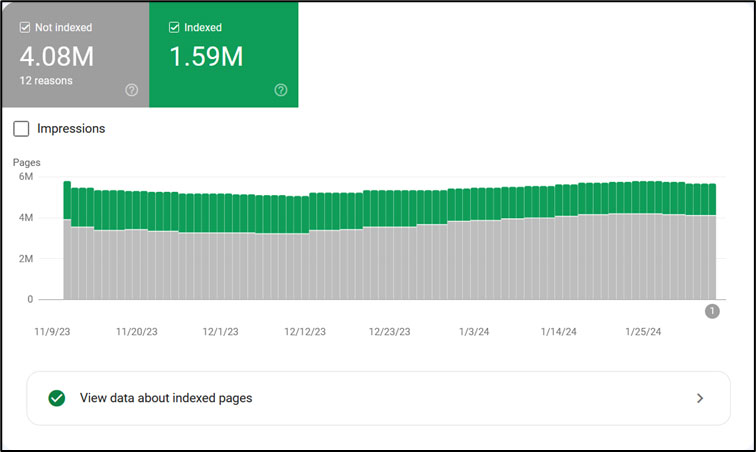
It’s important to note: having pages which aren’t indexed isn’t necessarily a bad thing. So if you see something like our screenshot below, don’t get intimidated.
If you’re trying to do your own SEO, it’s going to be time consuming for you to learn how to check if any of the issues above are a cause for concern, and if they are, how you should fix them.
So, at this stage, it’s better to call in an SEO expert.
Robots.txt
Check your robots.txt file to ensure that there are no rules blocking search engine bots from crawling your site.
To check your robots.txt file, you need to type in yourdomain.com/robots.txt into your web browser e.g. platypusseo.com/robots.txt.
You will see the following screen.
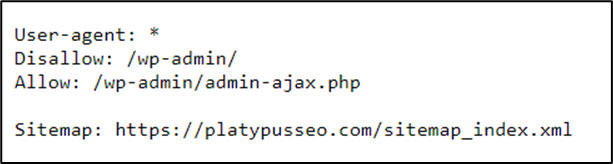
Depending on your website, it may have more rows of text.
If it looks like the screenshot above, then no pages on your website are blocking search engines from indexing them.
If you do see more rows of text, then we advise you to talk to a professional. Anything beginning with the word “Disallow” is blocking search engines from crawling the URL path mentioned after “disallow:”
On the other hand, if you do really want to go it alone and you’re auditing your site on a page-by-page basis, then this is what you should do:
- Identify for which page you would like to see if search engines are being blocked e.g. platypusseo.com/case-studies/
- Check if the following row exists in the robots.txt file: disallow: /case-studies/
Any URL with “disallow” in front is blocking search engines from crawling and thus indexing. This may be intentional though, so again, it may not be a cause for concern. You will need to speak to your team.
Again, you actually want some URLs to be blocked. So, don’t think that you need to remove all URLs with “disallow” in front of them.
.htaccess File
This is a common item that’s easy to skip, and usually, it’s WordPress websites that suffer the most.
We won’t go too deep into checking out your .htaccess file as you can break something serious on your website.
If you do own a WordPress website though, here’s what you can do:
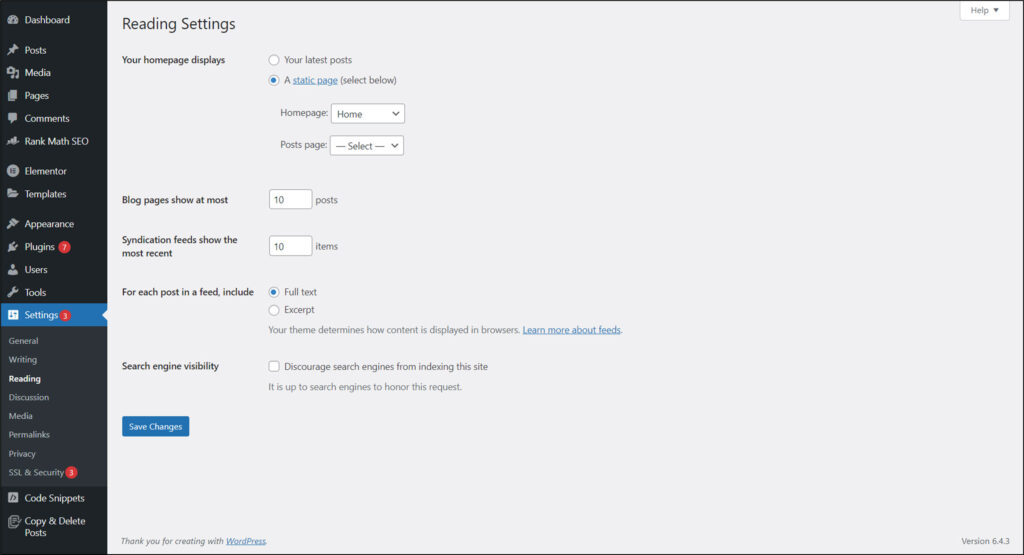
- Head to your WordPress backend
- In the left-hand sidebar area got to Settings > Reading
- Make sure that “Discourage Search Engines from Indexing this Site” is not checked
Manual Inspection
Manually checking a page’s source code is another great way to see what’s going on. Here’s what you need to do:
- Go to the page that you want to check. For the purposes of this exercises, we will use a page that we no is blocking search engines from crawling it platypusseo.com/wp-admin
- You will want to use the inspect tool from your browser. In most browsers, you need to right-click somewhere on the page and then click “inspect”. You will then see the page’s source code.
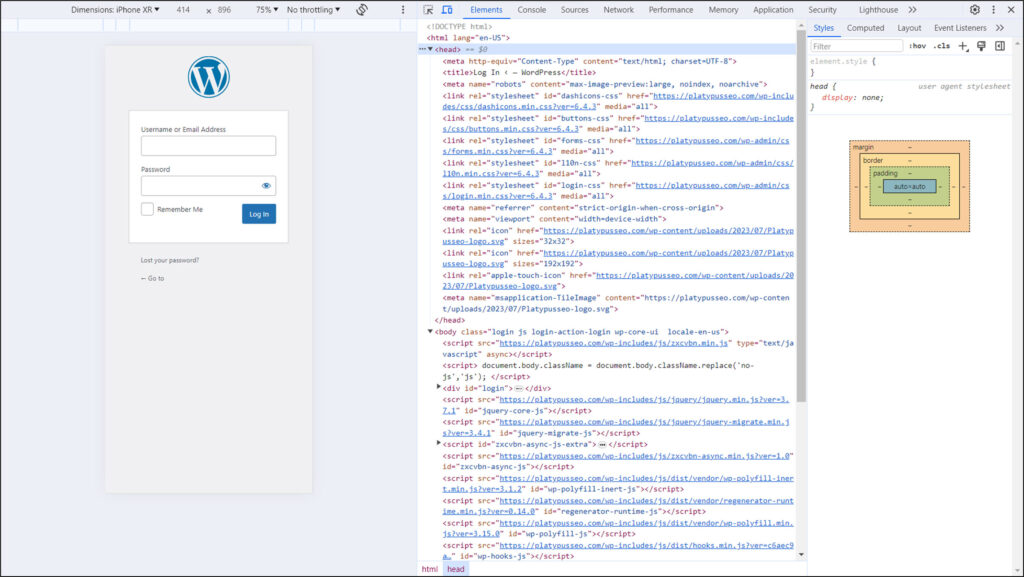

- Click on <head> to expand the section; on your keyboard, hit CTRL+F; and now type “noindex”. You should see something along the lines of:
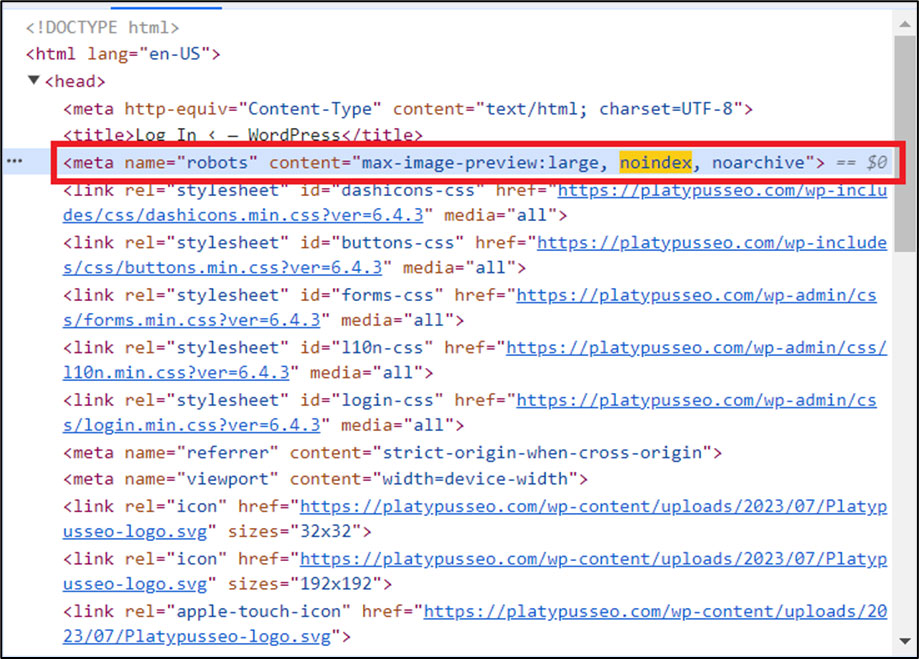

Here, we’re being told that “robots” i.e., the robots.txt file is blocking search engines from crawling and indexing the page. We can see where it says “noindex”.
At this stage, you would need to return to the robots.txt file to check if there is a disallow tag associated with the URL, and then check whether you want the URL to be indexed or not.
Step 2: Security
Modern day websites and new website builds in general are equipped with SSL certificates by default.
Due to a more competitive environment, most hosting companies will offer you an SSL for free.
In any case, SSL certificates are a must for SaaS websites. Your customers are handing over personal information including credit cards and email addresses, and they need to be ensured that their information is 100% secure.
In case your website doesn’t have an SSL certificate, here’s what you need to know:
Search engines view security as part of the user experience, and as such, having one will be beneficial to both your customers and your website.
So, here’s how to check if your website has an SSL certificate.
- Check the URL: Look at the website’s URL. If it starts with “https://” instead of “http://”, it likely has an SSL certificate installed. The “s” in “https” stands for secure, indicating that the website is using SSL/TLS encryption.
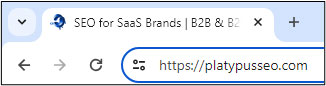

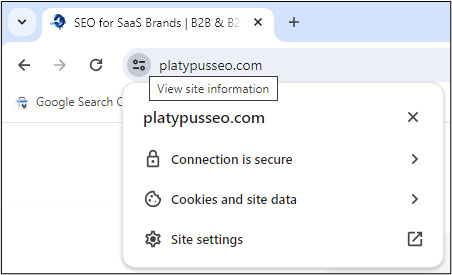
- View Certificate Details: You can view the SSL certificate details in most web browsers. Here’s how to do it in Google Chrome:
- Click on the padlock icon to the left of the URL in the address bar.
- Select “Certificate” or “Certificate Information.”
- A window will pop up displaying information about the certificate, including its validity and the certificate authority that issued it.\

- Use Online Tools: There are several online tools available where you can enter the website’s URL, and they will check if it has an SSL certificate. Some popular ones include:
- SSL Shopper’s SSL Checker (https://www.sslshopper.com/ssl-checker.html)
- Qualys SSL Labs SSL Server Test (https://www.ssllabs.com/ssltest/)
Step 3: Website Errors
4xx errors are numbered errors usually meaning that a particular request (like loading the page) cannot be fulfilled. The errors stretch from 401 all the way to 451, but you don’t need to know them all.
Here are the main 4xx errors you should be be aware of:
- 403: You’re not allowed to see the URL. This is usually done to block users from a certain country accessing a URL. Or any person who is not within a certain region from accessing a URL.
- 404: The URL you are trying to view doesn’t exist.
To check for these errors, do the following:
- Download Screaming Frog
- Type your website into the URL bar and in the horizontal menu immediately beneath click on response codes


- In the spreadsheet that appears beneath, look to the column which says “Status Code”.
- Usually you will see the following:
- 200: This is ok
- 301: This is a redirect
- 403: This is an error
- 404: This is an error
Generally, if you encounter a 301 error code, there’s nothing that you need to fix right away. Though, you may need to later down the track, so keep this in mind. For any 4xx error, you will want to contact someone to look into it if you aren’t too SEO savvy yourself.
Step 4: Responsiveness
We won’t go into too much detail here, as this is more related to the user experience. However, a quick check is easy to do.
Most websites today are responsive, especially newer sites.
In any case, to check if yours is as well, then simply open your website on your smartphone and see if it’s showing up nicely or not.
If not, you will want to contact a web designer to make sure that the mobile experience on your site is A-Grade.
Here’s a screenshot of ours:


Search Engines are increasingly placing greater value on sites which deliver a greater user experience to their website visitors. So, you should as well.
Step 5: Website Speed
The best place to check how your website is performing is via Google’s Pagespeed Insights tool.
It’s important to note, that unless your results are all showing up as red, then you don’t need to be too concerned during this early stage of your SEO audit.
In any case, here’s how to check your website speed.
- Type in your URL and Google will return mobile and desktop results to you. You will see the following result – and you can switch tabs to see mobile and desktop results.
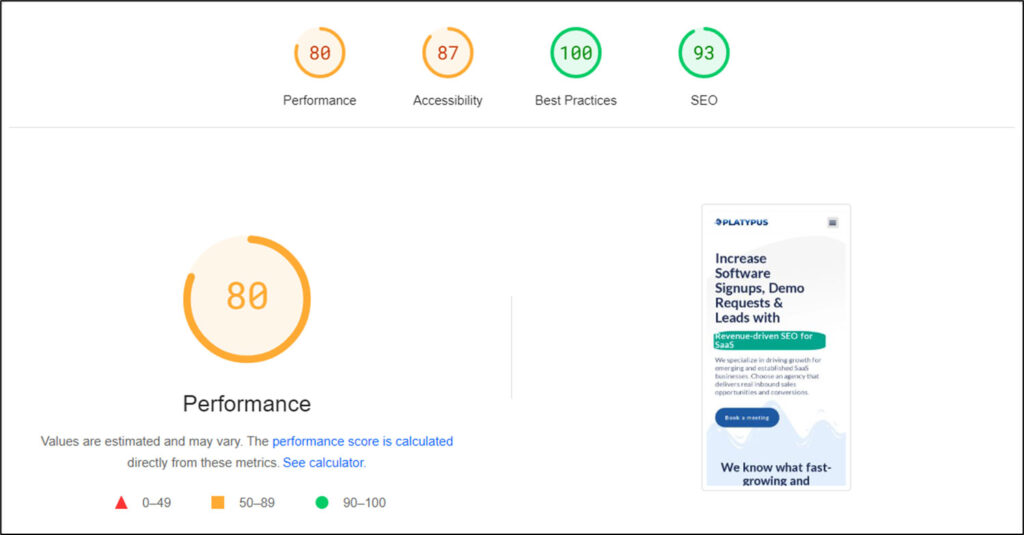
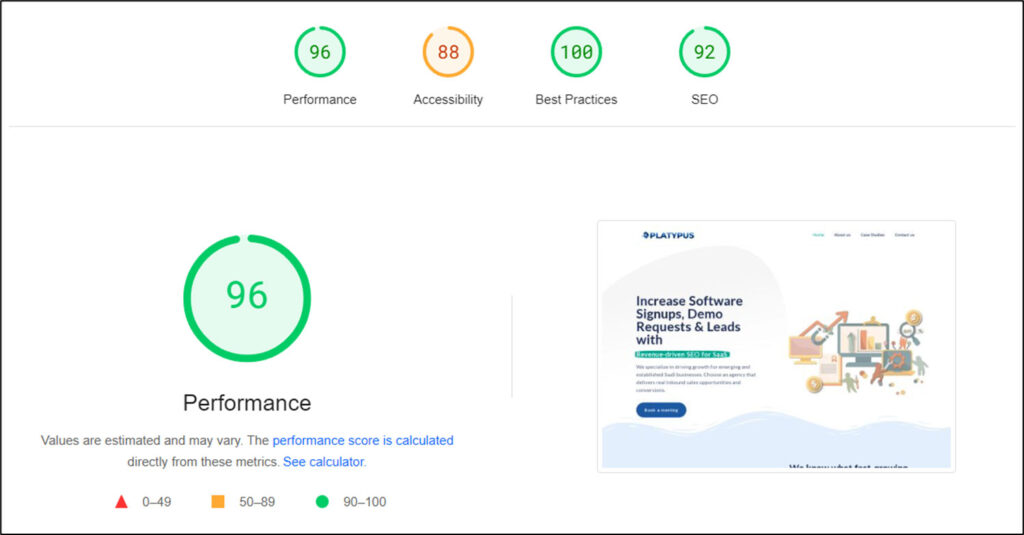
Your aim is to be in the green, or as close to it as possible.
But why?
Search engines consider website load times as integral to a positive user experience. Thus, a faster website will be rewarded with positive rankings results.
If you’re noticing poor website speed results, then it’s best to consult a professional on what kind of options exist to help you out.
Typically, WordPress websites (especially those using pre-built themes) are quite bloated and don’t necessarily load as quickly as they could.
A great supplement to look into is Headless WordPress websites. Another alternative is to have a completely custom coded website, though this is quite budget intensive.
Want to conduct your own SEO audit?
Download our free template.
Conclusion
So let’s wrap up.
Your initial website health check shouldn’t take up much time unless you find that things are going horribly wrong.
So how do you perform a health check?
- Indexing: There are many ways to check whether individual pages (or indeed your entire website) can/can’t be indexed on Google. Our recommended approach is:
- Site:yoururl.com: to see if the page is being indexed at all
- GSC: to see if a web is on Google’s index or not, and if not, then why
- Robots.txt: GSC may point you here, and you may need to edit some rows of code
- .htaccess: rarely the case, but it can happen to WordPress users who fail to implement correct settings
- Website errors: To make sure there is nothing fatal going on
- Security: To make sure that you’re handling your customer’s information in a safe manner, giving them peace of mind.
- Responsiveness: Checking if your mobile is responsive is as easy as looking at your website on a smartphone.
- Website speed: And finally, just head to Pagespeed Insights and check for the scores it gives you for your URL.
If you require help with your SEO audit or performing an SEO health check for your SaaS website, then feel free to contact us.