
On-page optimization is not just about doing the right things to satisfy search engines.
It’s also about making sure your content will reach your target audience and have them take some sort of meaningful action, including to:
- Purchase your software
- Sign up for a free trial of your software
- Request a demo
- Submit an inquiry
- Download a file
- Subscribe to your newsletter
Therefore your on page analysis needs to be performed in the spirit of achieving those goals.
We’ll go into quite a bit of detail with regard to each of the on-page SEO elements and address how they apply to your B2B SaaS platform.
The table below shows all the on-page elements you will need to analyze:
| Title Tags | Meta Descriptions | URL Slug |
| Content Duplication | Canonical Tags | Page Speed |
| Header tags | Keyword Optimization | Image Optimization |
| Internal Linking | External Links | Structured Data Markup |
It’s important to note: when you review each of the elements that we speak about, it’s important to keep the user experience in mind.
Search engines are always increasing the importance of the user experience when determining which pages should rank.
With that said, let’s go into more detail.
Title tag
The title tag is the first thing anyone sees when performing a search on Google (or any other search engine).
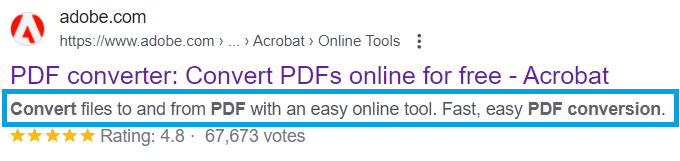
Your goal is to have someone click on your search result.
On a base level, it’s important that your title tag contains your primary keyword and is less than 60 characters long.
But you want your title tag to make your target audience take some meaningful action i.e., to click on your results instead of your competitors.
That’s why alongside SEO elements, it’s important that your title tag is both descriptive and that it compels the searcher to click on your result.
It’s highly important that you balance these three items when you create your title tag, and that none takes precedence over the others nor does any get left out.
So when you’re reviewing your title tag, here’s what you need to ask yourself:
- Is my title tag shorter than 60 characters?
- Does it contain my primary keyword?
- Is the content on the page being clearly communicated?
- Will my title tag compel someone to click on it?
Here are some examples of good and bad title tags:
Good
- PDF converter: Convert PDFs online for free – Acrobat
- Streamline Your Business Operations with Our CRM Software | Zoho
- Agile Product Development: An Expert Guide | TCGen
These title tags are good because they:
- Accurately describe the software or article’s purpose
- Incorporate relevant keywords
- Include the brand name for recognition (this is not always necessary)
- Highlight unique benefits
- And are clear and concise, catering to user intent and improving search engine visibility.
Bad
- Welcome to Our SaaS Company
- Home – Best Software Solutions
- Page Title – SaaS Product
These examples are bad because they are vague, lack specificity, and fail to include relevant keywords or information that would attract potential users or improve search engine visibility.
Meta tag
Meta tags offer you an opportunity to provide a more detailed description of your page alongside the title tag.
Here you don’t need to worry about inserting keywords. The only technical requirement is that it’s less than 158 characters long.
When you’re auditing your website, here are some additional bits you want to pay attention to – to make sure that your meta tag is great!
- It presents a unique selling point
- It has some sort of strapline compelling the searcher to click on it instead of a competitor’s search result
- It gives insight into the information contained on a page
One important thing to note is that Google will often grab its own meta tag from your page based on the searcher’s query.
Here are some examples of good and bad meta tags:
Good
- Meta Description for Project Management Software: “Boost productivity and collaboration with our cloud-based project management software. Try our intuitive tools today!”
- Meta Description for CRM Software: “Streamline customer relationships and drive growth with our comprehensive CRM software. From lead management to sales automation, we’ve got you covered.”
- Meta Description for Accounting Software: “Manage finances effortlessly with our powerful accounting software. Simplify invoicing, expense tracking, and financial reporting for your small business.”
These examples are good because they accurately summarize the content of the page, entice users to click by highlighting key features or benefits, and are within the recommended length limit for meta descriptions.
Bad
- Generic Meta Description: “Welcome to our website. Explore our products and services.”
- Keyword-Stuffed Meta Description: “Project management software, CRM software, accounting software. Best project management CRM accounting software.”
- Incomplete Meta Description: “Boost productivity with our software.”
These examples are bad because they are either too vague and generic, stuffed with keywords in an unnatural way, or lack sufficient information to entice users to click. They don’t effectively summarize the content of the page or encourage users to engage further.
Both title tags and meta tags are elements that your target audience sees before they actually get on your page. So, it’s important to do all you can to get them to click through.
Now, let’s get into elements that your website visitors will see after they load your page.
Need Help Auditing Your On-Page SEO?
Contact us for a free assessment.
URL Slug
We’ve already written extensively about URL structures and best practices, however, we’d like to add some more info here when you’re looking at any one page.
A URL slug for any particular page should be optimized to target a short-tail keyword. Using RallyUp’s landing page for its Online Raffles Software, you will see that there URL slug uses just the word “raffles”. Check it out: https://rallyup.com/raffles/
Let’s take another look. Here is Hubspot’s article titled Instagram Marketing: How to Create Captivating Visuals, Grow Your Following, and Drive Engagement on Instagram. You will notice that they used just “instagram-marketing” as their URL slug.
Make sure that your own URLs are following a similar trend i.e., that your URLs are as short as practically possible.
Content Duplication
When you have multiple pages on your website with similar content, you run the risk of keyword cannibalization occurring.
Thankfully, there’s a very easy way to check for pages with duplicate content on your website. All you need to do is head to Siteliner and enter your URL.
The online tool will scan your website and tell you which percentage of your pages have duplicate content, as well as to which extent.
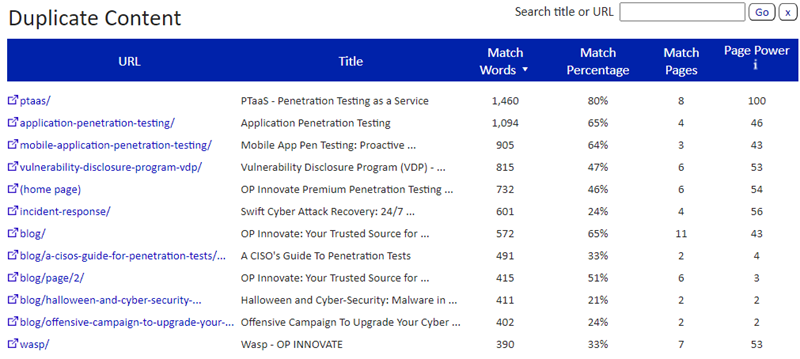
All you need to do from here, is click on the page which you would like to inspect. Siteliner will highlight specific pieces of text which are similar to other parts of your website.
Canonicalization
Above, we talked about content duplication and keyword cannibalization. One way in which these two issues are resolved is called canonicalization.
Essentially, a piece of code that’s placed into the backend of a webpage, which tells search engines which URL it should prioritize and show in search results.
There are a few ways in which you can check if canonical tags exist on any given page on your website. They are as follows:
- Crawl your website using Screaming Frog. In the top menu area, there is a tab called Canonicals. Look for the URL you’re interested in checking out and then look for a column called “Canonical Link Element 1”. Here you will be able to see what canonical (preferred) URL is, given the URL you’re looking at.
- Use an extension called Meta SEO Inspector (here’s the link for Chrome). Then, visit the URL you want to inspect. Click on the tool in the extension bar of your browser. You will see an item called “canonical”. This will tell you the canonical URL for the page you’re looking at.
- Finally, you can look directly into the source code of your page to see what the canonical URL is. Simply inspect the code of the page you want to audit and then search for “canonical”. To search, simply click CTRL + F.
Now that you know how to find whether a canonical tag exists and to which page it’s pointing, we will tell you a little bit about how to know whether it’s a good canonical tag or not.
This requires some manual work, but essentially you want to do the following:
- Check if there is any similar content on your website
- If there’s not then the canonical tag should be pointing to the URL you’re inspecting
- If there is, then you need to ask yourself: which page would I rather visitors see on Google when they perform a search? That’s the page the canonical tag should be referencing.
Page speed
As we’ve mentioned in our piece on conducting a preliminary health check, Google’s Pagespeed Insights is the best tool you can use to get an indication of how individual pages on your website are performing in terms of speed.
Here’s how you can check.
- Type in your URL. Google will provide you with results for both desktop and mobile devices. You should see something similar to the image below.
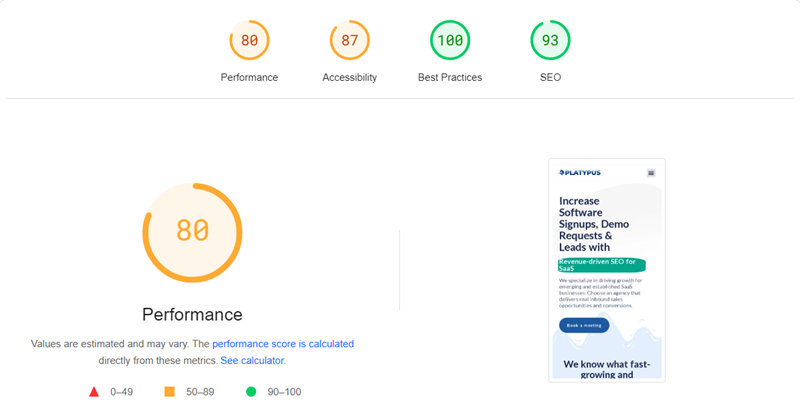
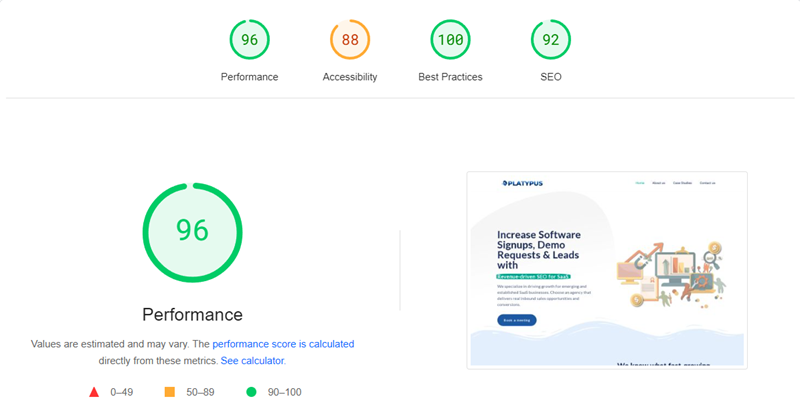
If your page is green (or close to it) then there’s not much to worry about. Your website is quite quick in Google’s eyes.
If it’s in the orange zone, and in particular, in the red zone, then there is cause for concern.
But why?
Internet users demand that things get done quickly, and search engines like Google recognize this. So, they’ll reward websites that load quickly.
In any case, take note of how individual pages are performing and look into whether or not you require the help of a web designer/developer to improve website load speed.
Header tags
The first thing that someone will see when they load your page is known as the “Hero Section”.
Another important term to know is “above the fold”, which is all content that appears on your website’s visitors screen without them having scrolled down.
H1 tags (often referred to as titles) often appear in the hero section. There’s a few things you want to look out for here. Firstly, that you only have one H1 tag on your entire page. Secondly, your primary keyword should be incorporated into your H1 tag (in a natural way).
For the remaining header tags, think of them as headings in an essay. They should serve to break up your page and give it a logical hierarchy and structure.
With respect to SEO, a logical structure means that H2 tags can be used to define a section of text, and H3 tags can be used to define subsections of the H2. Continuing with that logic, a H4 can be used to define the subsection of a H3.
If your h-tags don’t contain any keywords, then while you shouldn’t overdo it, sprinkle some keywords throughout your remaining h-tags. This should be done in a way that’s completely natural, though.
Finally, your header tags should be short and descriptive. They should use clear language that accurately summarizes the content of each section. As with an essay, using a very long heading doesn’t make much sense.
Keyword Optimization
When you’re auditing any individual content piece, have a simple read through the content. Then, ask yourself, does it generally address the primary keyword that I’m trying to target?
If yes, then you’re heading in the right direction.
In modern day SEO, you definitely want to place keywords throughout your content in order to rank well on search engines, but not at the expense of the user experience.
The user experience needs to come first, always. And Google (and other search engines) is smart enough to understand what the message of your content is.
So, what that means is that there needs to be a balance between keywords being sprinkled throughout the text and actually getting the right messaging across to your target audience.
When you’re auditing keyword optimization, say, for a landing page for CRM Software, you want to ask yourself:
In essence, does my copywriting clearly communicate that this landing page is a CRM software?
If so, then you don’t really need to be worried about placing exact match keywords throughout the body of your piece of content.
We’ll refer again to RallyUp’s Online Raffle Page as an example of keyword optimization done right.
You will notice, they haven’t used the phrase “online raffle fundraising” or “raffle fundraising platform” every time they’ve mentioned the word “raffle”. But no doubt, you get that this page is for a raffle software.
Now that we’ve covered the most important points, let’s talk about how to audit keyword optimization on any given page on your website:
- Identify Target Keywords: Start by identifying the primary keywords or phrases that you want your content to rank for.
- Keyword Placement: Analyze where and how frequently your target keywords are used within the content. Key areas to focus on include:
- Heading Tags: Use header tags (H1, H2, etc.) to naturally incorporate keywords into section headings and subheadings. Remember though, it doesn’t need to be throughout all h-tags.
- Content Body: Integrate the target keyword naturally throughout the body of the content. Aim for a balanced use of keywords without overstuffing or keyword spamming, which can harm readability and SEO.
- Alt-tags: Another area in which you can place keywords is throughout images in your content. It’s important to note though, don’t place keywords here just for the sake of it. With alt tags, you primarily want to describe what the image is.
- Heading Tags: Use header tags (H1, H2, etc.) to naturally incorporate keywords into section headings and subheadings. Remember though, it doesn’t need to be throughout all h-tags.
- Keyword Variations and Synonyms: Incorporate variations of your target keyword and synonyms naturally throughout the content. This helps to capture a broader range of search queries and enhances the overall relevance of the content.
Once again: keyword stuffing is not desirable. Place keywords throughout your content, in a way that reads naturally and does not take away from the user experience.
So when you’re conducting your audit, don’t worry if there isn’t a plethora of exact match keywords throughout your content.
As we mentioned above, it’s the essence of your messaging that’s important and its relevance to the primary keyword that you are trying to target.
Image Optimisation
So you undoubtedly know that visual aids such as images play a very important role in any sort of written content.
Imagine a web page or article without any images? It would be completely boring to look at. We do indeed hope your content contains images.
Now as with anything else, images can cause problems, and these problems are most often related to the amount of time they add to a website’s loading speed.
In addition, your customers are using a variety of different device types when they browse your website. So, serving the correct type of image is important as well.
Finally, images need to be optimized for web image searches as well, and this is where alt-tags come into play.
So, how can you assess whether your images are well optimized or not?
- Image sizing: Too often we see images on websites which are sized 1920 x 1080 when there’s really no need for them to be that large.
You can use tools like PageSpeed Insights and GTmetrix to identify which images on any given URL are causing slower loading speeds. - File Size and Compression: Alongside the images resolution, file formats like .jpeg produce quite large image file sizes.
Again, you can use Pagespeed Insights and GTMetrix to identify images with large file sizes. Infact, Pagespeed Insights will suggest that you use the .webp format, as it provides the greatest compression while not sacrificing image quality. - Alt-text: You can use tools like screaming frog or your browser’s inspect tool to check for alt-text in your images. Simply look for a bit of code which reads alt = “ “.
There should be text located within the speech marks. It should accurately describe what the image is. For example, if the image is an infographic of the sales pipeline, then the code should read as follows: alt = “sales pipeline“. - Descriptive Filenames: Like alt-tags, filenames should also be descriptive. In addition, you may choose to include keywords if indeed there are keywords that you could relate the image to. Avoid generic file names like “image123.jpg” and instead use descriptive names that accurately describe the content of the image. For example, “sales-pipeline.jpg”.
- Different images for different devices: Oftentimes, you will see landscape-oriented images being served on mobile devices. To view them properly, the visitor needs to zoom in, and this isn’t exactly a great user experience.
A better approach would be to serve landscape-oriented images for desktop and portrait-oriented images for mobile. Or atleast, images with a 1:1 aspect ratio (square images) so that both devices are covered.
Check that your webpages are following these best practices by viewing individual pages across multiple devices.
Internal Links
We’ve talked about auditing internal links on a site-wide level, but what about on a page-level?
Well firstly, you want to make sure that your page does have internal links. If it does great, you can take note of which internal links are pointing to your page via tools like Screaming Frog.
But what if your page has no internal links or you would like to see if you can add more?
You can perform a manual check of pages from which you could add internal links. Here’s how:
Identify variations of any keywords for which you would like a page to rank for. For example, if you’re trying to find additional pages from which you could create internal links to your “CRM Software” landing page then do the following:
- Go to Google
- Type: site:yourwebsiteURL.com crm software
- Open all of the URLs that show up in a new tab
- Find anchor text within each page that you could use to link to your CRM software landing page
- Take note of the identified URL, anchor text and page which is being linked to via a spreadsheet
Also take note: you can use alternative words in step two. For example, you could write “crm tool” or “customer relationship management tool” or anything else that’s suitable.
External links
Like internal links, external links directly connect your readers with useful and relevant pieces of information. Only this time, it’s to an external website.
In order to audit for external links, follow these steps:
- Use Screaming Frog to crawl your website.
- Click on the URL you’re interested in auditing.
- Click on “Outlinks” in the bottom menu area.
- You will now have an overview of all links pointing from the page you’re auditing to another page. Filter these links to only include links that aren’t your own website.
Unlike with internal links, you shouldn’t have an infinite number of external links on your webpage. The reason being: search engines may consider your site to be spammy.
In addition, external links should always point to relevant and high quality websites. Not spammy websites.