

Following your preliminary health check, keyword strategy review and auditing the quality and relevance of your content, it’s time to begin a technical SEO assessment.
Some items you go over will be brand new. Others you would have done during the prior step, except now you’ll be performing those tasks in greater detail.
The main items that you will review during a technical SEO assessment include:
- Sitemaps
- URL structure
- Canonicalization
- Server Response Codes
We dive into more detail in each section below:
Sitemaps
You want to check if your website has a sitemap and if it’s been submitted to Google Search Console.
Checking if your website has a sitemap is pretty simple.
Here’s how you can do it:
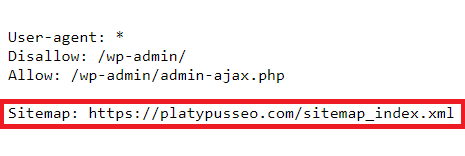
- Check via the Robots.txt File: This is often the first place to look. Go to www.yoursite.com/robots.txt (replace “yoursite.com” with your website’s domain). If there’s a sitemap listed there, it will typically be indicated by a line like:
Sitemap: https://www.example.com/sitemap.xml or https://www.example.com/sitemap_index.xml
- Manually Enter the Sitemap URL: If you found a sitemap URL in the robots.txt file, you can directly visit that URL to see the sitemap. For example, https://www.yoursite.com/sitemap.xml.
- Inspect the Website’s HTML: Sometimes websites include a link to their sitemap in the HTML code. You can view the page source (Ctrl + U or Cmd + Option + U or F12 on most browsers) and search for “sitemap” to see if there’s a reference to it.
- Use Online Tools: There are online tools and browser extensions available that you can use to check for sitemaps on a website automatically. These tools often provide additional information about the sitemap’s structure and content.
- Check with Search Engines: You can also use search engines like Google. Just enter site:example.com followed by inurl:sitemap in the search bar. This will show you if Google has indexed any sitemap for the website. Next, you want to see if your sitemap has been submitted to Google Search Console.
Here’s how:
- Sign in to Google Search Console: Go to https://search.google.com/search-console and sign in with your Google account.
- Select Property: If you have multiple properties (websites) added to your Search Console account, select the appropriate one from the list.
- Navigate to Sitemaps: On the left-hand side menu, click on “Sitemaps” under the “Index” section.
- Check Sitemap Status: Here, you’ll see a list of any sitemaps that Google has discovered for your website. If your sitemap has been submitted and processed successfully, it will appear in this list with details such as the number of URLs submitted and indexed.
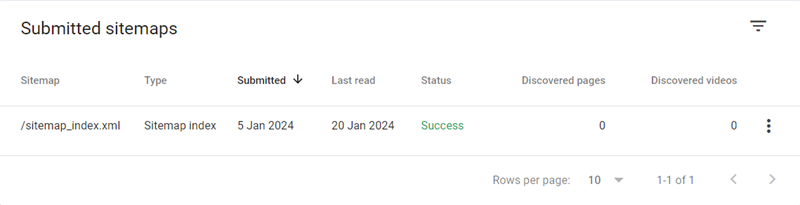
- Verify Submission Status: If you don’t see your sitemap listed, it may not have been submitted yet. You can submit one by entering your sitemap URL to the “Add a new sitemap” area in GSC.

See what kind of keywords your site should be ranking for
Contact us for a keyword projection report. We’ll discuss the keywords you should be targeting to drive sales and growth for your SaaS brand.
URL Structure
While you’re looking at your sitemap, you can also check out the structure of all URLs on your website. To do this, head to your sitemap URL directly.
URLs by themselves don’t hold the same weight they once did in terms of ranking a website. Nevertheless, they’re still very important when it comes to good SEO practices.
Your URLs should be:
- Descriptive and readable
- Short and simple
- Include keywords
- Use hyphens instead of Underscores
- Static
- Consistent and should avoid parameters
- Make use of canonicalization if appropriate
Here’s an example of a good URL for a landing page presenting some case studies:
The table below outlines the characteristics of SEO-friendly URLs.
| Descriptive and Readable | URLs should be descriptive and easy to read, giving users and search engines a clear idea of what the page is about. Avoid using long strings of numbers or cryptic characters and instead use descriptive keywords that reflect the content of the page. |
| Short and Simple | Keep URLs short and simple, avoiding unnecessary parameters, session IDs, or extraneous characters. Shorter URLs are easier to remember, share, and type, leading to better user experience and higher click-through rates. |
| Consistency and Structure | Maintain a consistent URL structure across your website, organizing content into logical categories and subdirectories. This helps users and search engines navigate your site more easily and understand the relationships between different pages. |
| Keyword Inclusion | Incorporate relevant keywords into the URL whenever possible, as this can help improve search engine visibility and indicate the topic or theme of the page. Often, it’s a good practice to use the primary keyword you’re targeting as your URL slug. However, avoid keyword stuffing and ensure that URLs remain concise and focused. |
| Hyphens vs. Underscores | Use hyphens (-) to separate words in URLs rather than underscores (_), as search engines treat hyphens as word separators, whereas underscores are considered part of the word. For example, use “example-url” rather than “example_url”. |
| Static vs. Dynamic URLs | Prefer static URLs over dynamic ones whenever possible, as static URLs are more user-friendly, easier to understand, and tend to perform better in search engine rankings. If dynamic URLs are necessary, ensure they are properly structured and include relevant keywords. |
| Avoid URL Parameters | Minimize the use of URL parameters whenever possible, as they can create duplicate content issues and complicate indexing. If parameters are necessary, use URL rewriting techniques to create search engine-friendly URLs. |
Canonicalization
Canonicalization – or canonical tags – are essentially a piece of code you enter in the backend of a page telling search engines:
If there are similar pages – to the page being viewed – on the website then the URL mentioned in the canonical tag is the URL which should be ranked by search engines.
Canonical tags are entered in order to prevent an issue called keyword cannibalization.
This is where two pages are so similar that when search engines try to rank them for the same set of keywords, it’s not sure which to give preference to, and thus both lose out in the process.
Canonicalization and cannibalization are kind of intertwined, as the former is in many instances used to resolve the latter.
So when you’re checking for canonical tags on your website, best practices are to ensure that all pages on your website have a canonical tag.
Here’s a deeper look into the matter:
Why it’s important:
There are a number of reasons for why implementing canonical tags is important. They are:
- Avoid Duplicate Content: Duplicate content causes harm to search engine rankings because you’re confusing the search engines. Previously, this wasn’t an issue as you could have more than one search result for a given search. Google changed this a long time ago though, and now website owners need to choose which piece of content they want to rank.
- Consolidate Link Equity: By specifying a canonical URL, you consolidate the link equity (ranking power) of all the duplicate URLs onto the preferred version, helping it to rank higher in search results.
- Improve User Experience: Canonicalization ensures that users are consistently directed to the preferred version of a page. Don’t get confused here. This means that your preferred page will be shown in search engine results. Not that users will be redirected to another page when they visit your website.
How to check for canonical tags
We’ll use SEMRush’s guide on instagram marketing as an example.
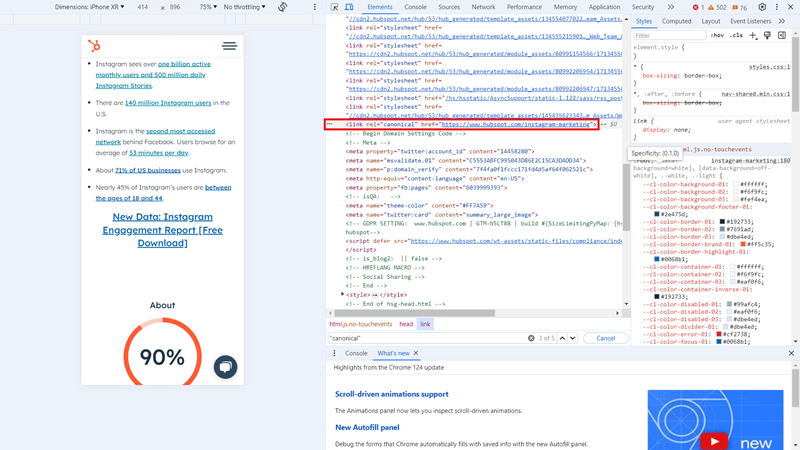
- View Page Source: There are a couple of steps to follow here. They are as follows:
- Right-click on the web page you want to inspect and select “View Page Source” or “View Source” from the context menu
- Use your browser’s search function (usually CTRL + F or CMD + F) and search for <link rel=”canonical”
- If the <link rel=”canonical” tag is present, check the value of the href attribute within the tag. This will give you the canonical URL that the page is referencing.
- Verify that the canonical URL is what you expect it to be. It should typically point to the preferred version of the page
- Meta SEO inspector plugin for chrome: This method is far simpler. After you have installed the plugin, follow these steps:
- Head to the page for which you want to investigate the canonical tag
- Click on the chrome extension to load it
- Look for “canonical” and check which URL is listed
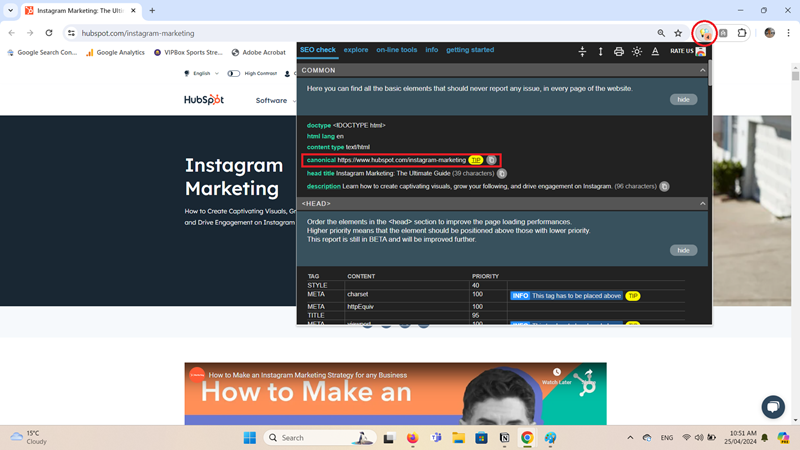
You will see in both cases above that SEMRush has said that the page being viewed is the preferred URL. If they had a better guide on instagram marketing, and this was a more condensed version, then they could have put the other URL here instead.
Server Response Codes (in depth)
The final step of your Technical SEO Assessment should be to perform a more detailed analysis of server response codes and take note of what is going on across your whole website.
Server response codes, also known as HTTP status codes, are standardized codes returned by a web server in response to a client’s request for a web page or resource.
These codes indicate the success, failure, or redirection of the request and provide information about the status of the server or the requested resource.
We gave you an initial overview into server response codes. Here’s a more detailed list of common server response codes and their meanings:
- 2xx (Success):
- 200 OK: The request was successful, and the server has returned the requested content. This is what you want to see.
- 3xx (Redirection):
- 301 Moved Permanently: The requested resource has been permanently moved to a new URL. Clients should update their bookmarks or links to the new URL.
- 302 Found (Moved Temporarily): The requested resource has been temporarily moved to a different URL. The client should continue to use the original URL for future requests.
- 4xx (Client Error):
- 404 Not Found: The requested resource could not be found on the server. This usually occurs when a page has been deleted and a 301 redirect has not been implemented.
- 403 Forbidden: The server understood the request but refused to fulfill it due to permission restrictions. This could be because certain regions
- 5xx (Server Error):
- 500 Internal Server Error: A generic error message indicating that something went wrong on the server’s end and it was unable to fulfill the request.
- 503 Service Unavailable: The server is temporarily unable to handle the request due to maintenance or overload. This could indicate that the server is temporarily down.
Why it’s important:
Monitoring server response codes is important for diagnosing and troubleshooting issues with a website or web application.
By understanding the meaning of different response codes, you can identify problems and take appropriate actions to improve the performance and reliability of your server and website.
See how to check for different response codes on your website here.
How to check server response codes:
Re-cap: Deeper level technical assessment
A thorough technical SEO assessment is crucial for ensuring the optimal performance and search engine visibility of your website.
By meticulously examining sitemaps, URL structures, canonicalization, and server response codes, you can identify and rectify issues that may be hindering your site’s ability to rank well in search results.
Implementing these best practices not only enhances your website’s SEO but also improves user experience, consolidates link equity, and ensures that your content is easily accessible and properly indexed by search engines.